10 Simple Hacks to Improve Your Internet Speed
10 Simple Tricks to Give Your Internet Speed a Boost: A Guide for Bangladesh
We've all been in this situation before. You're right in the middle of a business-critical Zoom call with a client, or you're just about to stream the thrilling final over of a nail-biting cricket match when – disaster strikes – that dreaded buffering wheel gives us the slowdown. In Bangladesh, where internet accessibility has definitely improved a lot – but still faces a number of infrastructure challenges – slow internet can be incredibly annoying.
Whether you're using a broadband connection in a high-rise in Dhaka or relying on mobile data in some of the rural areas, the speed issues more often than not come down to how your home network is being managed.
This guide gives you the lowdown on 10 super simple, expert-approved hacks to give your internet speed a boost. We're not just providing you with a list, though – we're also going to break down the why and how behind each fix so you can make long-term changes to get the most out of your connection.
Why Internet Speed Boost Matters for Bangladesh
In Bangladesh’s growing digital world, a fast internet connection is essential for work, study, and daily life. Slow speed doesn’t just cause buffering—it creates real problems.
-
Freelancing on platforms like Upwork can suffer due to lag and missed deadlines
-
Online classes on YouTube may buffer and break focus
-
Streaming on Netflix becomes frustrating
Most importantly, slow internet can ruin online shopping experiences, especially on international stores like Juul Dubai or RELX Dubai Store. You might apply a coupon, but before checkout completes, the page times out or disconnects—causing failed orders or lost discounts.
1. Where You Place Your Router Really Matters
The physical location of your router can make a world of difference to Wi-Fi performance, especially in Bangladeshi homes, which are often built with thick concrete and brick walls that have a reputation for blocking Wi-Fi signals.
Why it matters: Wi-Fi signals are radio waves that spread out and get weakened as they travel through obstacles – so if your router is stuck away in a corner, inside a TV cabinet or near the floor, you are essentially choking the signal.
The Fix:
Give it a leg up: Get the router off the floor and up onto a shelf or table.
Put it in the right place: Try to place the router in the most central room in your house so the signal can reach all the corners of your home without any issues.
Keep it out of the way: Avoid putting the router near other electronics like cordless phones or microwaves, which can actually disrupt the signal frequency.
Best Wi-Fi Router in Bangladesh: A Guide to Fix Slow Internet
2. Switch to the 5 GHz Band
Most modern routers do "dual-band", which means they broadcast two different Wi-Fi networks – one on 2.4 GHz and one on 5 GHz. If you live in a densely populated area (like most of Dhaka or Chittagong), the 2.4 GHz frequency is going to be congested because your neighbours are all using it.
Why it matters: Think of the 2.4 GHz band like a road during rush hour – it's crowded and slow. The 5GHz band is a wider, faster road with far fewer cars – so even though it has a shorter range, it gets your data transmitted a heck of a lot faster.
The Fix:
Check your Wi-Fi list and see if you can spot a network name ending in "5G" or "5GHz" (like MyHome_5G) – if so, connect to that one for streaming and gaming.
3. Stop Those "Bandwidth Thieves" From Stealing Your Wi-Fi
In Bangladesh, where sharing your Wi-Fi password is almost second nature, the consequences of letting your neighbours piggyback on your network can be a real speed killer.
Why does it matter, though? Your bandwidth is a precious thing – and if three people on your network are downloading movies, on top of your own browsing, you're probably left fighting for what little is left.
The solution is pretty simple, though:
Change your password regularly: Pick one that's a healthy mix of characters – not one that's going to be guessable in a flash.
Check your router's admin page: Do a quick scan for the "Client List" or "Attached Devices". If you spot a device that you don't recognise, get rid of it pronto.
Use WPA3/WPA2 for your router encryption: Just make sure you're not still stuck on WEP. That's basically a dinosaur when it comes to security.
4. Bump up your speed and ditch your ISP-provided DNS.
Your ISP auto-assigns you a DNS server when you sign up – but the thing with those is they can be pretty slow and glitchy.
Why does it matter? Well, DNS is like the phonebook of the web – turning all the websites you visit into the IP address that your computer can understand. If that phonebook is slow, then you're going to be waiting around a lot longer for every single page to load.
The fix is simple: Just switch to a public DNS provider that's fast and reliable.
Go with Google DNS: that's
8.8.8.8as your primary and8.8.4.4as your secondary.Or use Cloudflare DNS: that'd be
1.1.1.1and1.0.0.1,respectively.
Note: You can change this in your router settings – though you can also do it on your PC or laptop individually if you'd rather.
5. For the heavy stuff – lay down a LAN cable.
Wi-fi might be handy, but let's be honest: it'll never be as reliable or fast as a proper old-fashioned wired connection.
Why its Actually Important: Wi-Fi is notorious for dropping signal, getting knocked off course by interference, and having a snappy high ping. But then again, Ethernet cable sends data straight to your device with nary a whisper of air getting in the way. For gamers and remote workers who can't afford to be stuck in limbo - not being able to get on a stable internet connection - this matters a lot.
The Fix
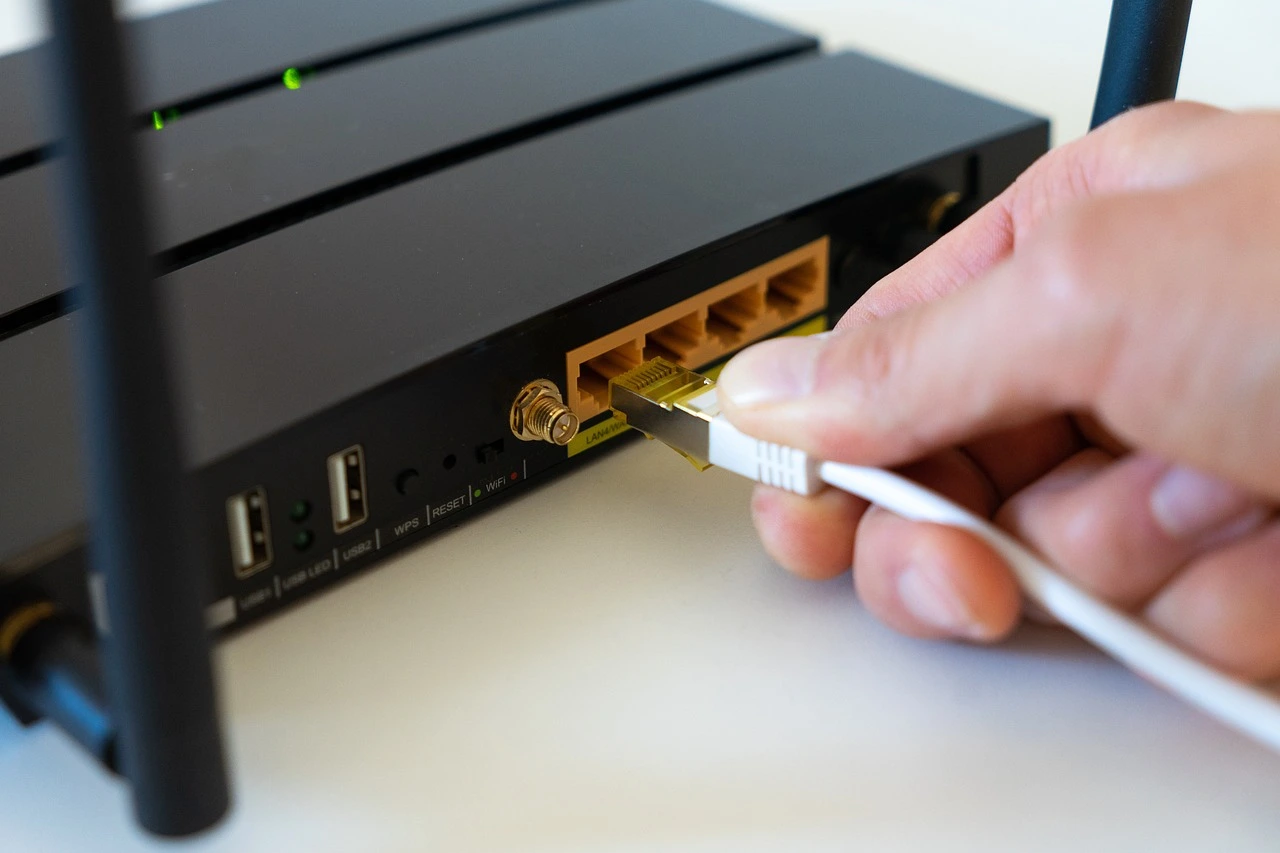
For your main PC, smart TV or gaming console, try getting a CAT6 Ethernet cable. It's cheap and pretty much guarantees you get the speed you're paying for – almost to the letter.
6. Look out for Malware and Background Apps
Sometimes we can make excuses for the internet, but often the real problem is with your computer. Not just any old problem, but one that's costing you a tonne in bandwidth.
Why It's a Bigger Deal Than You Think: Programs like Windows Update, Steam, and cloud syncing services like Google Drive and Dropbox can all be running in the background without you even realising it. They're chucking huge files up and down without you batting an eyelid. If on the other hand, you're running some malware, that'll turn your PC into a 'bot' – hijacking your internet to attack others on the net.
The Fix:
Task Manager: Hit
Ctrl + Shift + Escon a Windows machine and then take a gander at the network column in Task Manager and kill off any background tasks that are hoovering up bandwidth like a vacuum cleaner.Run a Virus Scan: The last thing you want is for your computer to be hijacked by some nasty piece of software.
7. Give Your Router a Regular Fling
It's an old chestnut that we've all heard – "turning it off and on again" is often the trick to getting things up and running again.
Why It's Actually A Good Idea: Routers are basically tiny computers, and over time their memory fills up with logs and temp data, which slows them right down. And then there's the problem of overheating, which throttles your internet speeds.
The Fix:
Power cycle it: switch the router off, unplug it, wait for 30 seconds and then plug it back in again. Job done – that'll clear out all the cached data and set up a fresh connection with your ISP.
Schedule a Reboot: If you've got a modern router, you can usually set it to automatically reboot at 4 in the morning – when no one's bothering you on the internet.
8. Clear Your Browser Cache
If your internet speed tests come back high but websites still take an age to load, then the problem could be with your browser itself.
Why This Is a Thing: Browsers are great for storing images and scripts from websites so you can load them up faster the next time around. But if this cache gets corrupted or gets too big, then your browser will start to slow down something awful.
The Fix
Go to your browser settings (Chrome, Firefox or Edge) and find the option to "clear browsing data", then delete the cache and all the cookies you've collected.
9. Give Your Hardware and Cabling a Once-Over
In Bangladesh, humidity and dust are sworn enemies of all things electronic. Add to that the fact that fibre optic internet (FTTH) comes with a whole lot of very delicate, thin yellow cable to contend with.
Why does this even matter? A bent fibre cable or a rusty old Ethernet port can cause "packet loss", which is basically a connection that's all over the place – you load a page halfway, and then it just stops loading.
The solution:
Take a close look at the cables running into your router. Are they all bent up at odd angles?
Check the connectors (RJ45 clips) – are they loose or maybe even broken?
And if your router is really old – we're talking more than 5 years old and all that – it's probably not going to be able to keep up with the speeds we're getting these days. You might need to think about upgrading to a Wi-Fi 6 router.
10. Get in Touch with Your ISP – and Know What to Say
Alright, so you've tried all the above and your speeds are still slow. Well then, it's time to think about your Internet Service Provider.
Why is this important? Sometimes there are problems with the line in your area, or maybe there's something up with your specific account setup on their end.
The Fix:
Run a speed test – and don't forget to take a screenshot of the results. You can use something like Fast.com or Ookla for this.
Pick up the phone and give your ISP a call. Don't just say, "My internet is slow." Have a bit more detail ready to go, like, "Hey, I'm paying for 20 Mbps, but I'm only getting around 5 on a wired connection. Optical power levels all seem to be normal over here. Can you maybe take a look at my port configuration for me?" Using the right lingo can sometimes get you speaking to someone who actually knows what they're doing.
Guide to Choosing the Best Fibre Internet in Bangladesh
Conclusion
The thing is, getting a better internet speed doesn't always have to cost you an arm and a leg. A lot of the time, it's just about getting the most out of what you're already paying for. By laying out your router in a good spot, keeping your network secure, and using the right hardware, you can make a pretty big difference to your browsing experience.
In a world where everything is digital, a connection that's rock solid is basically the key to unlocking every opportunity that comes your way. Don't let a slow connection get in your way.
Want me to show you exactly how to tweak the DNS settings on either your Windows or Android device?